Key takeaways
- Check whether a PDF has real text (you can select it) or is a scanned image before you study from it.
- OCR on scanned PDFs often confuses look-alike characters like l and 1, or O and 0.
- Diagrams, tables and multi-column pages are where extraction most often goes wrong.
- Spot-check AI-made notes and cards against the original, especially numbers and formulas.
In this articleShow
- Scanned PDFs vs. searchable PDFs — the difference that matters
- Where OCR gets it wrong
- Image-heavy PDFs vs. text-heavy PDFs need different treatment
- Common extraction mistakes to watch for
- How to check AI-generated study material before you trust it
- A practical workflow once you know what you're working with
A PDF isn't one kind of file — it's a container, and what's actually inside it changes how you should study from it. A lecture slide deck exported straight from PowerPoint has real, selectable text underneath. A photocopied textbook chapter someone scanned five years ago has none — just a picture of a page that happens to look like text. Treating both the same way is the single biggest reason PDF study workflows go wrong: you either lose information silently (from the scanned one) or waste time working around a problem that doesn't exist (in the searchable one). Here's what actually differs, what commonly gets extracted wrong, and how to check the result before you rely on it.
Scanned PDFs vs. searchable PDFs — the difference that matters
A searchable (sometimes called "native" or "digital-born") PDF was generated directly from a word processor, slide tool, or typesetting software — the letters on the page are actual text characters, which is why you can select and copy them, and why Ctrl+F works. A scanned PDF is a photograph of a physical page, saved in a PDF wrapper. There's no text layer at all unless something has run OCR (optical character recognition) on it — software that looks at the image and guesses what letters it contains. You can tell the difference quickly: try selecting a sentence with your cursor. If it highlights like normal text, it's searchable. If nothing selects, or your cursor just draws a box around the whole page, it's a scan with no text layer.
Where OCR gets it wrong
OCR is good, but it isn't perfect, and it fails in specific, predictable ways worth knowing about before you trust its output blindly. It regularly confuses visually similar characters — a lowercase "l" for a "1", an "O" for a "0", "rn" for "m" — which is low-stakes in a sentence a human will read for general meaning, but a real problem if that character is inside a chemical formula, a math equation, or a citation number. It also struggles with low-contrast scans (a photocopy of a photocopy), skewed or rotated pages, unusual fonts, and handwriting, where accuracy can drop sharply rather than degrade gracefully. Multi-column layouts — common in journal articles and some textbooks — are another common failure point: OCR can read straight down a column boundary and interleave text from two columns into nonsense, even though the page looked perfectly readable to your eyes.
Image-heavy PDFs vs. text-heavy PDFs need different treatment
A biology textbook chapter full of labeled diagrams, a chemistry PDF full of reaction schemes, or a math packet full of graphs and worked equations is a different extraction problem than a dense reading full of paragraphs. Diagrams, charts, and labeled figures often carry information that a straight text extraction misses entirely — a labeled cell diagram's meaning lives in the image itself, not in whatever caption text sits below it. For image-heavy material, the caption and any text physically inside the figure (axis labels, structure labels) matter as much as the surrounding paragraph text, and it's worth specifically checking that generated study material didn't just skip the diagram and summarize only the prose around it. Text-heavy PDFs have the opposite risk: it's easy to generate flashcards or notes that capture isolated facts while missing the connecting logic between paragraphs — the argument or process the author is building, not just the vocabulary they used along the way.
Common extraction mistakes to watch for
- Headers, footers, and page numbers getting pulled into the body content as if they were part of the actual text — common with PDFs that have a running header on every page.
- Footnotes or endnotes merging into the main paragraph they're attached to, especially in scanned academic PDFs where the footnote sits in small type at the bottom of the page.
- Tables collapsing into a single run-on line of text, losing which value belonged to which row and column.
- A multi-column page (two-column journal layout, some textbook chapters) getting read left-to-right straight across both columns instead of down one column then the other.
- Numbers, units, or chemical/mathematical notation getting silently altered by OCR — this is the highest-stakes category since a wrong digit in a formula won't look obviously wrong the way a garbled sentence does.
How to check AI-generated study material before you trust it
Whether you generate notes, flashcards, or practice questions from a PDF using AI, spot-check the output against the source before you rely on it for exam prep — this matters more for scanned and image-heavy PDFs than for clean, text-based ones. A fast check: pick three or four cards or notes at random, especially ones involving a number, formula, name, or date, and confirm each one matches the original page exactly. If a chart, diagram, or table was central to a page, confirm the generated material actually reflects what was in it rather than just the caption. Studi's notes and flashcard tools let you edit any generated card or note directly, so a spot-checked error takes seconds to fix rather than requiring you to regenerate the whole set — the point of checking isn't to distrust AI extraction by default, it's to catch the specific, predictable failure modes above (OCR misreads, missed diagrams, merged footnotes) before an exam does it for you.
A practical workflow once you know what you're working with
For a clean, searchable, mostly-text PDF: go straight to generating flashcards for definitions and terms, and practice questions for anything that requires applying a concept rather than just recalling it — see active recall for why testing yourself beats rereading either way. For a scanned, image-heavy, or messy PDF (out-of-order slides, multiple footnotes, dense diagrams): turn it into organized notes first, so the reorganization step surfaces anything that looks off (a garbled sentence, a diagram with no explanation attached) before you build flashcards or questions from it, then spot-check a handful of the results against the original pages using the check above.
Questions students ask
How do I know if my PDF is scanned or has real text?
Try selecting a sentence with your cursor. If it highlights normally, the PDF has a real text layer. If nothing selects, or a box draws around the whole page instead, it's a scanned image with no text layer (unless OCR has already been run on it).
Can AI read a scanned or image-based PDF, not just a searchable one?
Yes — Studi's notes, flashcards, and practice test tools accept scanned PDFs and photos directly, not just typed, searchable documents. Scanned and image-heavy material is exactly where it's worth spot-checking the output afterward, since that's where OCR-style extraction is most likely to misread a character, number, or diagram.
Why did my flashcards get a number or formula wrong?
This usually traces back to an OCR misread on the source PDF — visually similar characters (like "l" and "1", or "O" and "0") are a common failure point, especially in scanned or low-contrast documents. It's worth spot-checking any card involving a number, formula, or date against the original page, and editing it directly if it's wrong.
Do diagrams and charts get included when a PDF is turned into notes?
Text extraction focuses on the words on the page, so a labeled diagram's meaning can be missed if the tool only reads the caption and not the labels inside the figure itself. It's worth checking that generated notes actually reflect what a key diagram showed, not just the paragraph text around it, particularly for image-heavy subjects like biology or chemistry.
Should I take notes on a PDF or just highlight it?
Highlighting alone is passive review and tends to produce weak retention. Turning the PDF into organized notes, then flashcards or practice questions from those notes, gives you material you can actively test yourself on — which is what actually builds memory.

Keep studying
Keep reading
- Study Methods· 6 min readHow to Use an AI Tutor for Studying (And When Not To)An AI tutor is available at midnight before a test, never gets impatient with the same question asked three different ways, and can re-explain a concept from a completely different angle instantly. It's also not the right tool for everything. Here's how to actually use one.
 By Ben Hirsch
 - Study Methods· 6 min readHow to Make a Practice Test From Your Own NotesA practice test only helps if it tests what you'll actually be tested on. Here's how to build one from your own class notes instead of a generic question bank, what separates a useful practice question from a weak one, and how to grade yourself without fooling yourself.
 By Pranay
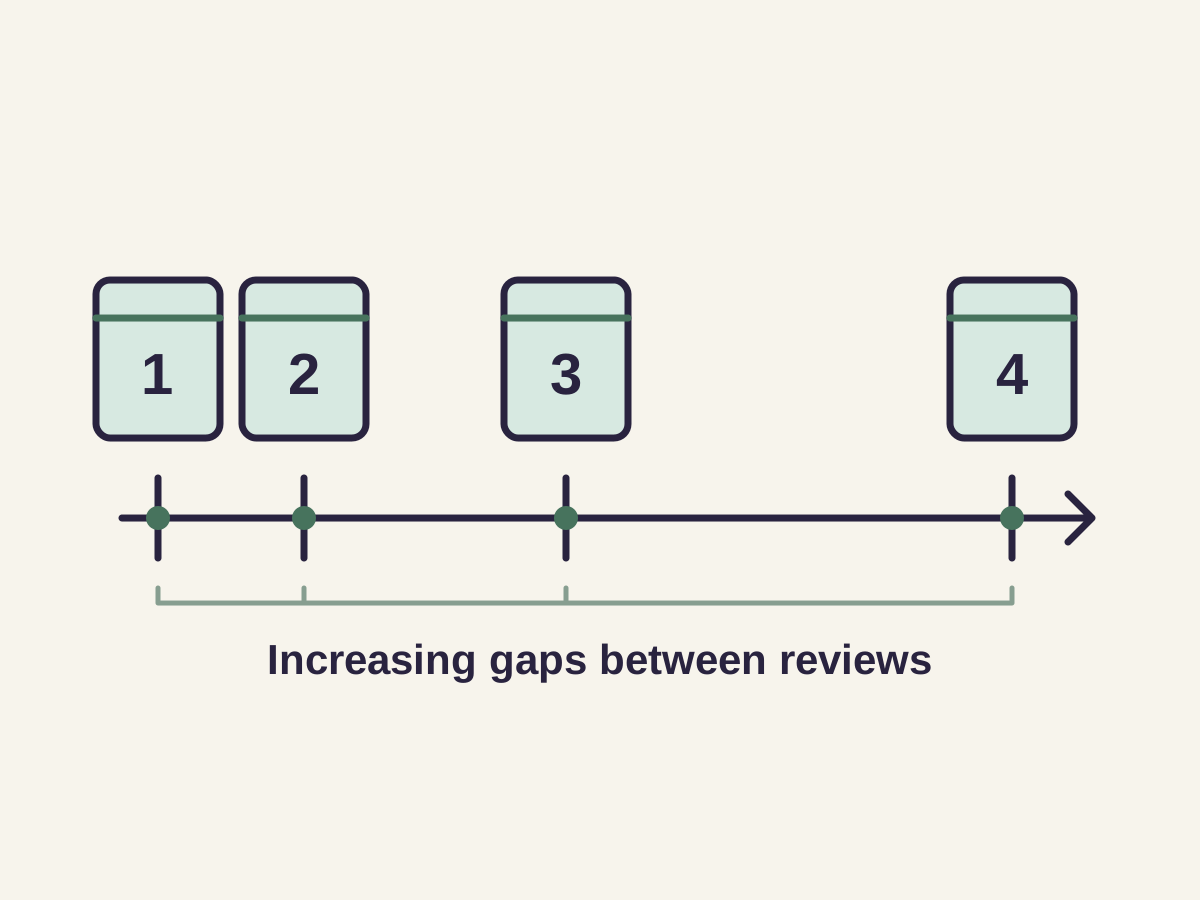
 - Study Methods· 6 min readSpaced Repetition: A Practical Guide to Studying Less and Remembering MoreCramming feels productive right up until the test is over and you've forgotten most of it a week later. Spaced repetition — reviewing material at increasing intervals over time — is the scheduling principle that makes studying stick. Here's how to actually apply it.
 By Pranay


Ready to try it on your own notes?
Start from the same class material you are already reviewing, then choose the study format that helps most.
Get Started FreeTrusted by hundreds of users